
Waze Navigation & Live Traffic review
 Analysis by GetAllApps
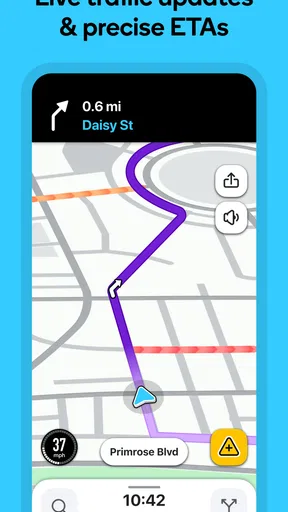
I find Waze most useful when a drive is likely to change while I’m already on the road. Its live traffic view and navigation are built around helping drivers react to delays, rather than simply showing a route and leaving them to work out what is happening ahead. That makes it a practical choice for commuting, unfamiliar city trips, and errands with a tight arrival time. It is less compelling when I only need a quiet map or a route I can follow without checking traffic.
Where a drive can get confusing
The first thing I keep in mind with Waze is that a suggested route is a recommendation, not a promise. Traffic can shift after I set off, and the app may offer a different way through. That can be helpful when a queue is building, but repeated changes may feel distracting if I already know the roads or prefer to stick to a familiar route. I treat the route as guidance and make the final decision based on what is safe and sensible in front of me.
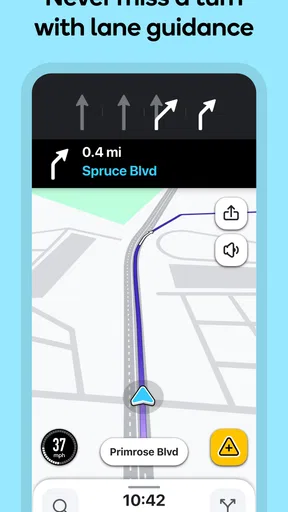
That distinction matters most in dense urban areas. A route that looks shorter on screen may involve turns, busy junctions, or local streets that are harder to navigate than a more direct main road. I would not follow a last-second instruction blindly. If I miss a turn, I let the navigation recalculate rather than trying to correct it with an abrupt manoeuvre. The useful habit is to glance at the next instruction before reaching a junction, then keep attention on the road.
Waze is a Maps & Navigation app developed by Waze, and its central appeal is the combination of GPS guidance, traffic information, and safety alerts. The app is free, has an Everyone age rating, and is available for devices running Android 10 or later. I would check that operating-system requirement before troubleshooting a phone that cannot install it; an incompatible device is different from a navigation problem.
There is also a difference between having a route and having dependable live guidance. Navigation that relies on current traffic is most useful when the phone can maintain a connection and location access. If the map or instructions seem stale, I first consider whether the phone has a working connection and a clear view of its location signals, rather than assuming the route engine has failed. A tunnel, underground parking area, or tall buildings can make a phone’s position less reliable for a while.
What I check before blaming the route
When directions behave oddly, I start with simple checks: confirm that the destination is correct, that the app is open and showing the intended trip, and that the phone has not lost its connection. I also make sure the device has enough battery for the drive. These checks sound basic, but they separate a wrong destination or a phone issue from a genuine routing concern without adding needless fiddling at the roadside.
If the map seems to place me on a nearby street, I avoid making a risky turn just to match the screen. I continue safely until the location settles or the app can recalculate. In my experience, calmly giving navigation a moment is better than repeatedly tapping controls while moving. If a trip is important, entering the destination and checking the proposed route before setting off gives me a chance to catch a typo or an unexpected direction change while parked.
A calmer setup for everyday trips
I recommend doing the initial setup while stationary. Install the app from the relevant app store, open it before leaving, and follow the prompts needed for navigation to work on the device. Then enter a familiar destination and look over the route before starting. A short test drive is a sensible way to learn how instructions appear and sound, without making a first encounter with the interface happen in heavy traffic.
Before a regular commute, I also check that the phone is positioned where I can see it without taking my eyes off the road for long. I avoid trying to change settings or type an address while driving. If another person is in the car, asking them to handle a destination change is a much better workflow than reaching for the screen. The app can help with decisions, but it cannot make phone interaction safe.
It is worth deciding how much route flexibility I actually want. Drivers who welcome traffic-aware alternatives may appreciate being guided around a developing delay. Those who find route changes unsettling can use the map as context while still choosing a familiar road when appropriate. I would not assume that the shortest-looking route is automatically the easiest or safest one; road conditions, visibility, and the driver’s comfort matter too.
Recovering a trip without making it worse
If I take a wrong turn, I keep driving safely and let the navigation respond. Trying to force a correction at the exact moment an instruction changes is where a useful tool can become a distraction. When the app appears stuck, I check whether the phone still has a connection and whether its location has updated. If those basics look normal, closing and reopening the app while parked can be a reasonable next step; doing it in moving traffic is not.
For a destination change, I wait until I can stop safely. I then check the address or place name carefully, especially when similar names appear in the same area. This is a small but valuable workflow: confirming the destination before departure is quicker than sorting out a route to the wrong place halfway through a busy drive. I also avoid relying on a single screen glance to understand a complicated junction; the safest response is to follow road signs and conditions first.
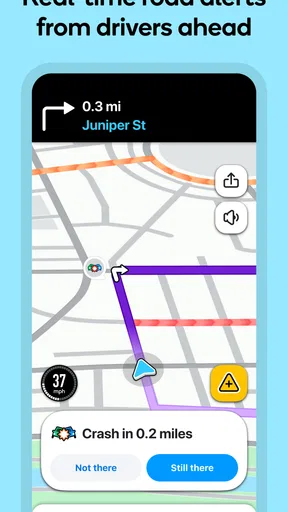
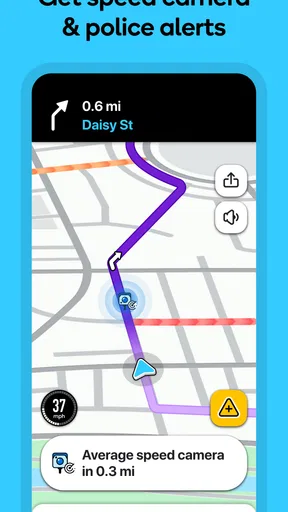
Traffic alerts can be useful as prompts to pay attention, but I do not treat every alert as a complete account of the road. Conditions may change between the report and my arrival, and a warning does not replace judgement. If visibility is poor or traffic is moving unpredictably, I slow down as appropriate and follow local signs rather than making a sudden detour solely because the map suggests one.
When the phone or the road is the real problem
Not every bad navigation moment is caused by Waze. A weak mobile connection can limit how current a live traffic view feels, while a phone that cannot determine its position accurately may show the vehicle in the wrong place. A drained battery, an overheated device, or a mount that blocks a useful view can also make a drive harder. I check these practical causes before deciding that the app itself is at fault.
There are times when another navigation choice is more suitable. If I need route information that remains available without a dependable connection, I would choose a navigation option designed around offline maps rather than count on live traffic guidance. If I want a clean overview for walking or public transport, a general-purpose map may fit better than an app focused on drivers. Waze earns its place when road conditions and changing traffic are the main concern, not as a universal map for every kind of journey.
Its community-oriented traffic picture is a strength and a trade-off. A timely report can make a route decision more informed, but any live picture is only as useful as the information currently available and the phone’s ability to receive it. I use alerts to build awareness, not as proof that a road is clear or that an alternative will be faster in every circumstance. That cautious approach keeps the app helpful without handing it more authority than it deserves.
How it compares with familiar alternatives
Compared with a traditional map app used mainly to look up a place and follow a fixed route, Waze puts more emphasis on current driving conditions and alerts. That is a meaningful difference for a commuter who faces variable traffic, but it may be unnecessary for a short, familiar trip. A standard map can feel preferable when I want a broader view of nearby places or need directions for travel beyond driving. I choose based on the job, rather than assuming one app should replace all the others.
Waze has an average rating of 4.4 from around 8.9 million ratings, with about 641,000 written reviews and over 500 million installs. Those figures suggest that it is widely used, but they do not tell me whether its route choices suit my neighbourhood, driving habits, or phone. I would judge it on a few ordinary journeys: whether instructions are understandable, whether alerts are useful, and whether route changes reduce stress instead of adding to it.
Who I would recommend it to
I would recommend Waze to drivers who regularly encounter changing traffic, travel through areas they do not know well, or appreciate being warned about conditions along a route. It is especially useful when I can enter the destination before setting out and let the app guide me without repeated screen interaction. Someone who drives a predictable route and dislikes changing directions may still find the traffic context helpful, but should not feel obliged to accept every suggested alternative.
I would be more cautious about recommending it to a person who needs offline navigation as their primary safety net, has an older unsupported phone, or expects a map to work perfectly through connection and location problems. It is also not the right choice for someone who plans to operate the phone while driving. In those cases, a different navigation approach or better trip preparation is more important than installing another app.
My practical verdict
For me, Waze is at its best as a live driving companion: set the trip while parked, understand the next instruction, and use traffic information as one input rather than an order. The most useful habit is to troubleshoot calmly—check the destination, connection, and location, then wait for a safe moment before changing anything. That simple routine prevents many frustrating detours and avoids turning a minor app hiccup into a road hazard.
My recommendation is to try it if changing traffic is a regular part of your driving. The free price makes that easy, and the app’s focus on live road conditions gives it a clear role beside more general maps. Just keep expectations realistic: it can help you make a better-informed route choice, but it cannot guarantee conditions, replace road awareness, or fix a phone that has lost its connection or location accuracy.
Pros and cons
Pros
- Live reports help drivers avoid hazards and road closures.
- Community updates can make traffic information more current.
- Automatic rerouting can save time when conditions change.
- Voice guidance lets drivers keep their attention on the road.
- Drivers can report hazards and traffic for other users.
Cons
- Frequent alerts can distract drivers if settings are not adjusted.
- Suggested routes may use narrow or unfamiliar roads.
- Traffic estimates can be inaccurate when reports are sparse.
- Some features rely on a steady mobile data connection.
- Battery use can be high during long trips with navigation enabled.


